
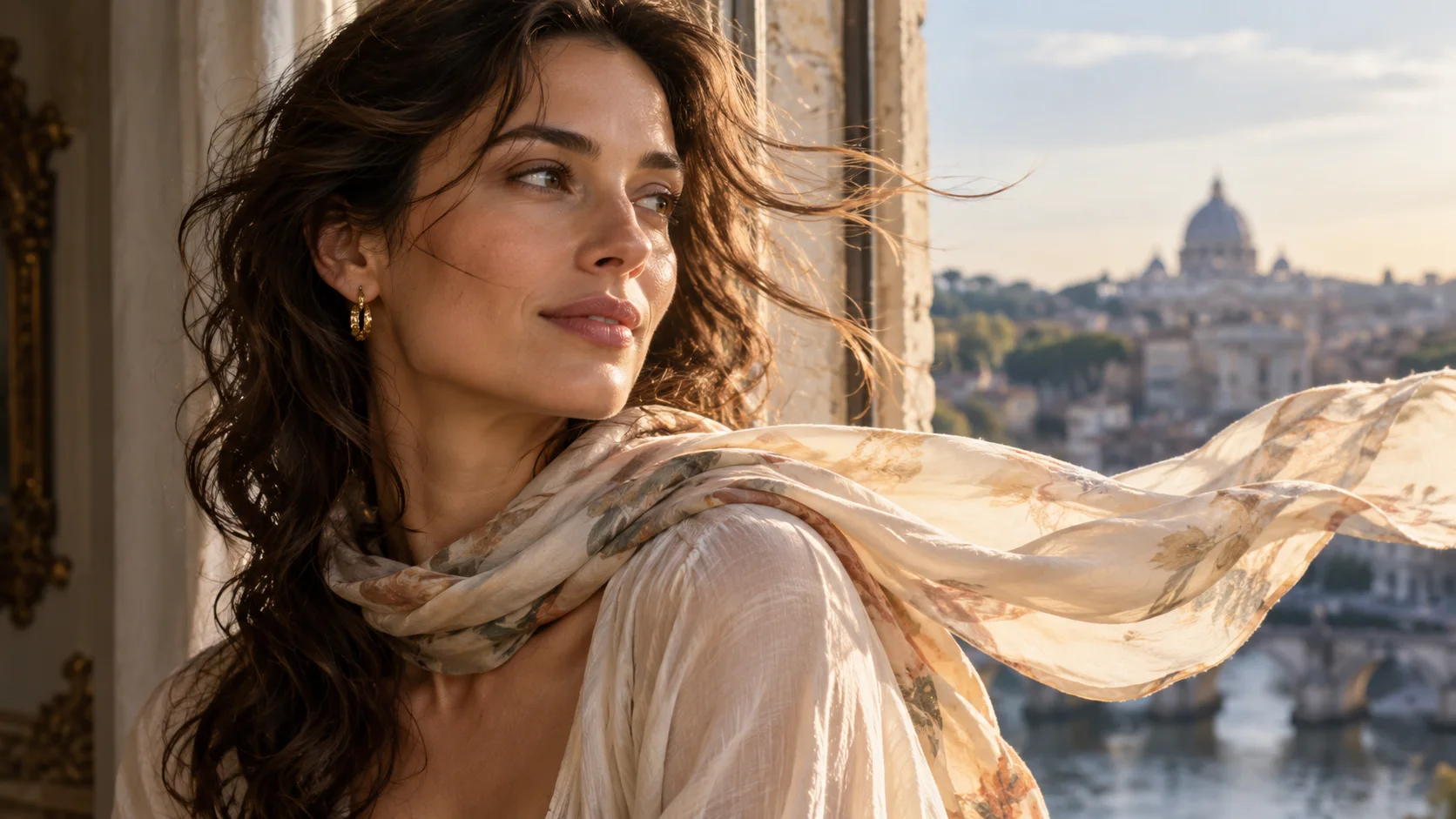
 Image to video · first & last frame
Generated video will be displayed here
Motixo video workflow
Image to Video on Motixo
Animate a still into a short clip using first frame and last frame control — camera move, subtle motion, and cinematic pacing.
- Start with a clear brief
- Built for real production use
- Explore multiple directions
How to use Image to Video
Step 1
Upload the first frame
Choose a sharp still as the opening image for image to video.
Step 2
Optional last frame
Guide the ending pose or product angle so motion lands cleanly.
Step 3
Describe camera motion
Orbit, push-in, or breeze — then generate the clip.
Image to Video Features
First frame control
Lock the opening composition so motion starts on-brand.
Last frame guidance
Steer the ending pose for product reveals and portraits.
Natural micro-motion
Hair, fabric, and light shifts that feel filmed.
Campaign clip length
Short social-ready image to video outputs for ads and stories.
From Motixo stills
Chain image tools into motion without leaving the studio.
Image to Video Examples

Image to Video FAQ
Open Motixo image to video, upload your still as the first frame, optionally set a last frame, describe motion, and generate.
Try Image to Video
Start with one simple brief, then tune the lighting, style, and framing until it fits your campaign.